This 4K Monitor is a Dream For Professionals
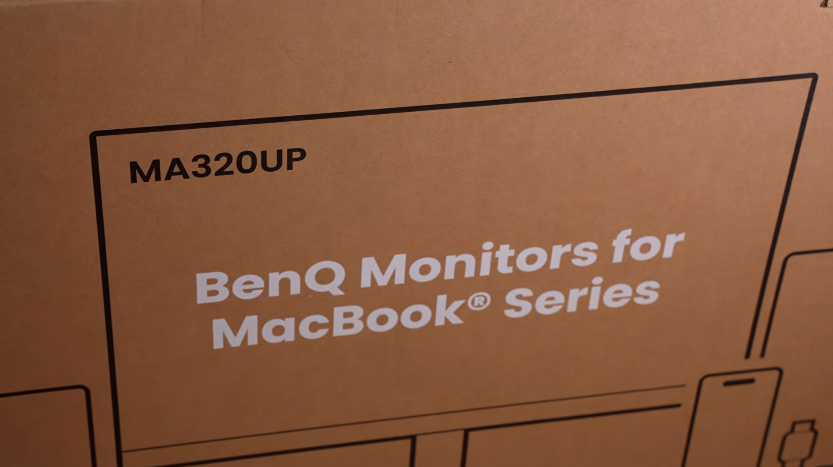
Table of Contents
Unboxing:
The monitor is here for MacBook users, with this powerful feature, and BenQ has also launched its screenbar Halo 2. We had reviewed Halo 1 a long time ago. They are saying to buy Halo 2.
Let’s open the box and see what the things are for the users. This is a 32-inch monitor, and specifically, this screen bar. How big is its use if you have made a table setup and you are a working professional or even a gamer? Let’s open the monitor.
First of all, a quick start guide, and this is for cable management, a type C to C cable, an HDMI cable, a power cord, Now it will fall easily, the monitor is not full, there is nothing else in it, the packing is very good First of all, this stand is here, it looks very heavy, it is made of silver.
This is the base on which the monitor will stand. We were thinking something else. Hold it with both hands and tear it off like this. This is the full adjustment. This is the heaviest monitor to date. It is very heavy, tighten it like this. The monitor is open, now let’s open the bar.
English is a little bit of a language. Packaging is similar to the one we had last time. We will get the bar first, we think there is a light at the bottom as well, and the cable is a type C connectivity cable. It is flexible, and the quality of the cable is very good. Along with that, we get a controller that will be on our table; there is a display on it as well. It will work only when it is connected; there will be a stand or holder.
You will get a power adapter in this box. This will be for charging this. We forgot to give the cable for charging this. We will set up and experience it.
Introduction:
It’s been 15-20 days since we used this monitor. Our team has also used it and completed various tasks in it. If you have a MacBook or Mac Mini and you are making your own desk setup, this monitor can be a good choice because of its colours and screen. We don’t get the feeling that you have started watching on an external monitor instead of the Mac screen. We will cover why that is in the video. And mainly the hello 2 bar, many people are working in the dark and have their desk setup ready. They never notice the role of lighting and where this hello bar is. We will also cover the experience of this monitor in this video.
Build & Design:

So, let’s start with the design. The monitor is in a complete polycarbonate build. The build quality is very solid. The panel on the front is glossy. It comes with a matte version, but we said that it is targeting Mac users. You can also adjust the tilt, swivel, pivot, and height. The base of the monitor is also good and sturdy.
It looks clean and clean, and there is a strap for cable management, and on the bottom side, there is a power button, a joystick, and the base of the monitor has an extra area with a rubberised texture. You can keep your stuff on it like a smartphone, or you can decorate your desk setup. So, it feels like a dedicated space.
Halo Bar Light:
The bar is adjustable, and the clip has different grips that can be adjusted according to the size and type of monitor. Whether it is a thin monitor, a curved monitor, or a bulge monitor, you can set it on any monitor. We have set it with this monitor. You can use this bar with any type of monitor.
The wire length is around 1.5m, and it has a light in the front, but we get light in the back as well. So if your table is on the wall side, then you don’t need any lamp, and the lighting will be the same as you need in the area, like a PC, etc.
Wireless Controller Halo Bar:
The main thing is the controller, in which we get a digital display, and all the icons are touch-sensitive. So, just tap on the icon that you want to adjust, and this dial moves smoothly, and there is a rubber grip at the bottom, and due to the rubber grip, the dial is kept on the table. If you are rotating the dial, then it maintains its grip well.
On the back side, You will get a Type C port for charging and it has different color temperature icons Which will cool down the temperature of your color and you can keep the same color tone according to the different situations If you are using it at night then the warm lighting is good and for normal daily work, Neutral lighting is good and for productivity, Cool lighting is better. This was a pro tip from our side. You can set the front and back lights separately by using the up and down icons.
Then you get the power button, and there is a heart button as well, which you can assign to your preference. You can set it to any colour temperature or brightness and hold the heart button. So, whenever you press the heart button, your preset will automatically set. And here you get an auto button, which will automatically set the brightness and temperature according to your ambient lighting. For this, there is a sensor that detects the auto.
It has a presence detection sensor that detects motion outside. If you are not sitting in front of the monitor for 5 minutes, then it turns off automatically. And if you sit in front of the monitor, then it turns on automatically. The Helio controller is chargeable, and it has a battery that can give a backup of 3 months on full charge. And yes, there is an external attachment. Through this attachment, you can install a webcam with the bar if you are using a webcam. Now coming back to the monitor.
Ports:
Let’s talk about the ports. Ports are very important in a productivity monitor. And we get 2 HDMI ports in it, 1 USB-C port, which is best for MacBooks because it supports 90W PD, and also the display output. Since it is a 4K60 monitor, you can get 4K60 maximum output.
Type-C is not only for MacBook but also for Windows laptops, and nowadays, we get the support of Type-C Display output and PD charging from all laptops. So, it has a lot of benefits. You get the Display output, and the laptop is charging too. You don’t need to connect extra. Apart from that, you get 2 USB 3.2 Gen 1 ports, one near the joystick and the other at the back. These are downstream ports. If you have connected any laptop through Type-C, Mac Mini, etc., or any Windows laptop, you can connect these Type-A ports.
Fast speed data transfer or for connectivity like keyboard, mouse, etc. And if you want to charge a small device, then you can do that too because it has a 7.5W output. And you will get another Type C port, which will not give you display output, but it supports 15W charging type C port. Plus, fast speed data transfer will also be done. If you have taken a connection from your PC system, then you will have to connect the Type C also.
Because data transfer is not possible with HDMI. We felt that the monitor is targeting Mac users like MacBook or Mac mini, but still, if someone wants to use it with their system, we felt that the DP port is missing in it. It should have been there.
Display:
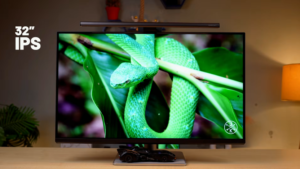
Now, The most important part is the display, It has a 32 inches screen size and it is a IPS panel And the coating on the screen is nano glass coating, It gives the same feeling as the MacBook screen It has 4K resolution and 16:9 aspect ratio, It has 60 Hz refresh rate, If you are using MacBook Air, You will connect it with it, But we think it should have been at least 90 or 120 Hz But the same thing happens, High refresh rate with 4K, It impacts on the pricing.
5ms of great response time. Obviously, it doesn’t target gamers, but we have played the game, and we will tell you later. It has HDR10 support, and it is a 10-bit panel.nd HDR performance is good, like highlights are good, Shadows are good, Dynamic range calibration is good, so you get a good experience if you are watching HDR content. It has a colour gamut and a dedicated Mac mode. So, Mac mode has 100% sRGB and 92% P3. Then there was a DCI-P3.
We tested it on the DCEI B3 mode, and it was 96%. So, the colour is adjusted accordingly. If you are using a Mac, we would recommend the Mac mode because it looks good. We have connected the Mac, and it feels like a Mac. We tested the brightness.
The number is 598 nits. By the way, this display is 600 nits certified, So, It can go up to 600 nits, and it is comingup too 600 nits. It is coming up to the standard, so it is fun to use in HDR. The brightness and colour gamut are good in the monitor. As the target is the productivity of the users, you have to do colour grading, a colour accuracy task on videos and photos, and the colour gamut is good there. Plus, you can use it in any environment. Brightness is also good, so there is no disappointment in that.
The IPS panel gives good viewing angles, and the TÜV iComfort 3.0 is certified Plus. It is flicker-free and low blue light, so it won’t damage your eyes if you use it for a long time, and when you buy a premium product, you get this certification.
Experience:
If we talk about the experience, it is a multimedia product with productivity, and the monitor doesn’t disappoint. Plus, it is a massive 32-inch size, so it is good for side-by-side multitasking.
Experience with Halo Bar 2:
The experience of the Halo Bar 2 is different. Normally, you might have noticed that when you are working on your desk, it is not that difficult, but when you are working in low light, you can feel a different strain on your skin. To tackle that, you can use this bar, which has light in front and back.
If your environment is lit, then it doesn’t cause eye dryness and itching. Because our eyes don’t like to focus. Sometimes in dark environments, Eyes get unfocused, and you have to do something. That is because of this. Because there is no lighting in your environment. You are looking at a well-lit screen, and that is why there is an issue of focus.
If you are a student, working on a project, or writing notes, then this can be useful for you. In logo optical technology for eye care, the throw of the light is 18 degrees. So, the light doesn’t reflect on your eyes, and the screen is also not reflected on the monitor screen.
If you do colour grading, we would recommend that you not do it in a dark room because our eyes adjust to the light, and if there is any white on your screen, it looks too white. So, you can’t see the darker portion or the black part properly.
Back to the monitor, it has 2 speakers of 33W, and the speaker quality is very loud. You can’t expect a soundbar bass, but it is loud, and it is good for watching content and for meetings. So you can use the speakers of the monitor here.
Gaming Experience:
Now, if you have a 4K monitor and it has a 60Hz refresh rate, then you can play console games. Now, if someone has a desk setup with a MacBook, PS5, or Xbox, then they will play games. And 32 inches is also fun, we were playing on the PS5, and we were playing on Spider-Man 2. The colours are good, and the speakers are good. If you don’t want loud sound and you don’t have headphones on, you can play games on these speakers. The HDR performance is also good. We were playing on HDR.
And it was a dark environment, so we had to turn on the screen bar. So, because of that, the experience was good. And yes, if you have a console apart from a Mac mini or MacBook and you want to use this monitor in a desk setup, then you can play games on this. Not a first-person shooter in which you need a high refresh rate, but you can play casual story games on this. Experience is good.
OSD Controls:
For OSD, we can set brightness, volume, and input selection with the joystick. And there is a feature, when you connect the Mac, the brightness of the Mac syncs with the monitor. And when you reduce the brightness of the Mac, the brightness of the monitor also decreases. Plus, when you connect the Mac, the colours of the Mac automatically sync. So, you don’t have to manually choose any mode if you have connected the Mac. This monitor is for Mac users only, so the features are also limited to it.
Software Support:
You can’t send the controls from the monitor. It has software called Display Pilot 2. You can easily install it on Mac or Windows, and it has multiple options like different colour modes. It has a P3 display, sRGB cinema, and e-paper mode if you are reading.
There is an M-Book mode which is tuned with the major Apple devices’ colour profile, like MacBook, iPad, and iPhone. There are multiple options below. There is a focus sync mode. You can customise the colour mode, Visual optimizers, Low blue light, and audio according to the different focus modes. So, if you have an Apple device, it has that feature designed for you. There is a low blue light mode which you can adjust manually, or it is set automatically on the basis of sunset and sunrise.
It has auto pivot mode, If you pivot the display, Its orientation changes automatically Which is good for streamers and creators, This type of monitor will be used primarily Still, If you want to use it vertically, Just rotate it and the orientation changes There are some shortcuts which you can assign, we will put them on the screen, Pause the video and watch them There are miscellaneous settings.
You can set different colour modes, Power off charging option, AMA, Advanced motion accelerator, and many more things. You can see them on the screen. Pause the video and watch them.
Conclusion:
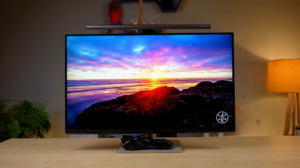
Overall, If we conclude this monitor, If you have a Mac mini, MacBook, MacBook Pro or any device with which you want to do productivity tasks 32 inches size with 4K resolution, So, You will enjoy watching content, You have to do colour accuracy task, Color grading in photos and videos, So, This monitor will give you a good experience, And its panel and colours sync well with MacBook, So, It gives you an iMac feeling, And if you would have shifted from MacBook display to another monitor.
So, if you have a MacBook and you are using this monitor, then you won’t feel the colour difference. Overall, we don’t feel any drawbacks in using it. Brightness is also good in any environment. It will work with a MacBook only. You can also use it with HDMI or any device.
And mainly the pricing, obviously, it comes with offerings like Type C, PD, Size, and 4K resolution. It also comes with a 27″ variant. You can choose according to your preference and budget. If you want a reflective monitor and want to prefer the matte option, then you can get the MA series. All the features are available, but it only comes with matte panels.
Coming onto the screen bar, this device looks like a light, but it is not. We had a lamp in our setup, but when we used the Hello Bar, you could feel the difference, whether you are gaming or doing productivity tasks. This bar is not only with this monitor, but it is also not a Mac user thing. You can use it with any monitor. If you are streaming late at night or gaming. It is a nighttime job, and it is very much like a desk.